


Read time: 3 Min
PST(Personal Storage Table) is an Outlook data file that stores emails, contacts, notes, and other mailbox items. A PST file is used to take a backup of Outlook data for archiving and free up space. Importing the PST file to Outlook is required when you need to access emails stored in the PST file. The PST file can be imported to Outlook using the built-in Import/Export feature of MS Outlook. In this blog, we will discuss the step-by-step process to import PST to Outlook 2024 and other previous versions.
Steps to import PST File to Outlook
Follow these simple steps to view PST file in Outlook with ease:
- Open Outlook.
- Click on File.
- Now click Open & Export, and select Open Outlook Data File.
- Navigate and select the PST file you want to access.
Import PST file to Outlook 2024, 2021, 2019, 2016 & Office 365
Microsoft Outlook comes with an inbuilt Import/Export feature to help you import PST file to Outlook. Here’s the complete process to import PST to Outlook.
- Open MS Outlook, Click File.
- Select Open & Export, and now click on the Import/Export option.
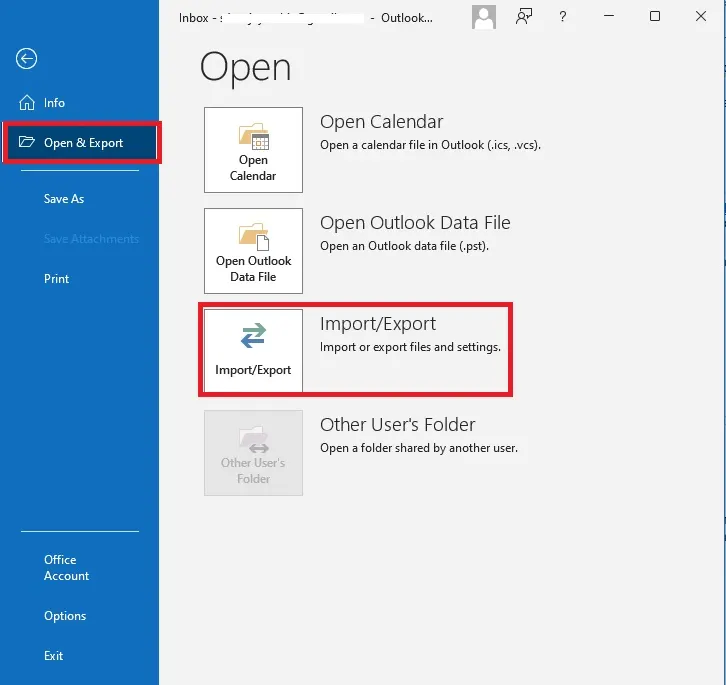
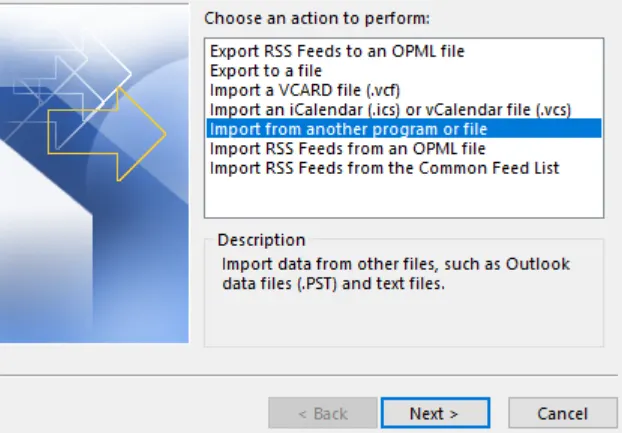
- Choose Import from another program or file from the available options and click Next.
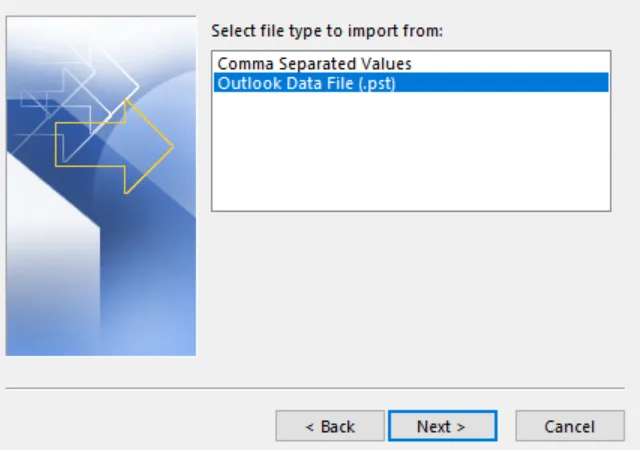
- Now select Outlook Data File (.pst) and click Next.
- Click on the Browse button to locate the PST file.
- Select the PST file and click Next.
- Choose one of the options according to the requirement.
- Replace duplicates with items imported.
- Allow duplicates to be created.
- Do not import duplicates.
- Click Next.
- Click on the Include subfolder checkbox and click Finish.
Drawbacks of the Manual PST to Outlook Import
There are some limitations of the manual method that are listed below:
- The manual method to import PST to Outlook is time-consuming. If you have a large number of PST file choose the automated tool to save time.
- In the manual method, you don’t have the option to select only required emails.
- If the PST file is corrupt, the manual method won’t repair Outlook PST data file.
- The risk of data loss is there if the PST file is too large.
- The manual method won’t split a large PST file.
BLR PST Repair Tool – Automated Solution
The manual method to import a PST file to Outlook works fine, but what if the PST file you want to import is damaged?. The PST file can get corrupt due to any reasons like sudden system shutdown, abruptly closing Outlook, virus attacks, or faulty plugins. When you try to import a corrupted PST file to Outlook, you may encounter Outlook running slow, an Outlook freezing error, or a missing email folder. To avoid all these errors user must use an automated tool like BLR PST Repair to repair PST file and restore emails and other data from the corrupt PST file.

Conclusion
The article explains manual methods to import PST file to Outlook 2014 and previous versions. PST file can be imported with the help of the Outlook Import/Export feature. But if the PST file is corrupt, damaged, or inaccessible, the manual method won’t work. In such a case user must take the help of a professional PST Repair Tool to access the contents of the PST file. The PST repair tool suggested above can repair a severely corrupted PST file and maintains original properties and formatting of emails as they are.