Read time: 3 Min
If you are switching from Zimbra or have a TGZ backup file just sitting on your system, at this point, you know that Gmail doesn’t have an import button to upload TGZ files. However, there is a workaround that will help you to import TGZ to Gmail along with attachments.
A TGZ file is a compressed backup file exported by Zimbra. Since Gmail does not support importing TGZ files directly, you first need to extract the data from the zip file and then import it using an email client (mostly Thunderbird). Additionally, you can use the automated tool to directly importZimbra TGZ to Gmail account. Let’s check out both solutions in detail.
Why Need to Import TGZ to Gmail?
There are various benefits of choosing Gmail over Zimbra mailbox, some of them include;
- In contrast to Zimbra Mail service, Gmail is a more productive, secure, and powerful email service for better communication through online messages, especially for business and personal electronic message utilization, and for better email data management. Any user, whether personal or business, can readily access their data in their Gmail account.
- Google is always working to make sure that user data remains safe and secure.
- To avoid annoying ad interruptions, most users choose to switch from Zimbra to Gmail. Users prefer to get accustomed to the Gmail platform because it doesn’t interrupt their searches with advertisements.
- Additionally, Gmail’s automatic sorting abilities make email data even more effective. This keeps all of the emails in the social media, spam, promotion, and other folders or sections apart.
How to Manually Import Zimbra TGZ to Gmail Account?
To manually complete the migration, you need an email client that can import the extracted data from TGZ files and then upload it to Gmail. Let’s complete the task with the Thunderbird client.
Step 1: Extract the TGZ File
- Locate the TGZ file on your computer.
- Right-click the file and extract it using tools like 7-Zip or WinRAR.
- After extraction, you will get the .eml files of each folder.
Step 2: Configure Gmail in Thunderbird
- Open Mozilla Thunderbird.
- Go to Account Settings.
- Add your Gmail account using IMAP settings.
- Allow Thunderbird to sync with your Gmail mailbox.
Step 3: Import Extracted Emails
- Install the ImportExportTools NG add-on in Thunderbird.
- Right-click on Local Folders.
- Select ImportExportTools NG → Import EML files.
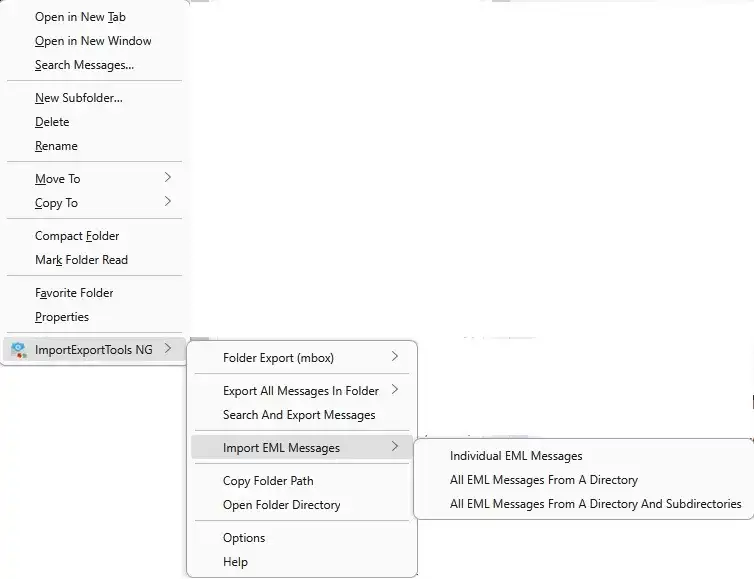
- Choose the extracted files from your system.
Step 4: Upload Emails to Gmail
- Drag and drop the imported emails from Local Folders to your Gmail folders in Thunderbird.
- Thunderbird will automatically upload the emails to your Gmail account.
Here are the steps to import TGZ file to Gmail for free, but there are a few limitations. It is a lengthy process that requires some technical knowledge.
Instant Solution to Import TGZ to Gmail with Attachments
There is no better option than seeking professional assistance when a secure move is required. Experts advise putting your faith in a tried-and-true solution, BLR Zimbra Converter for importing. Zimbra converter application that is advised for batch converting Zimbra TGZ to Google Mail account. While importing emails, this tool will maintain data integrity and preserve email key elements and attributes.

Along with that, using this tool, you can also import TGZ to Office 365, Exchange, Yahoo, and all other webmail accounts. There is a free trial edition available that allows you to analyse the working of the software.
Conclusion
Importing emails from TGZ file to Gmail doesn’t have to be complex. Whether you choose the manual solution using Thunderbird or a dedicated migration tool depends on you. If you want a free solution, then you can choose the manual approach. But you need to learn some techniques. On the other hand, the automated tool will import your data in a few simple clicks.